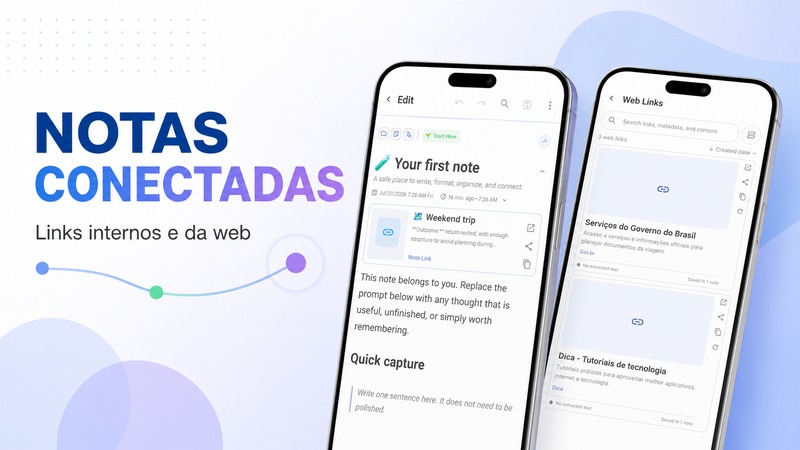
Linked notes let you keep a clean hub (the plan) and open specialized notes when you need them.
Why link instead of stacking files
If one card holds images, audio, video, and a PDF, the home preview becomes noisy and hard to teach. Prefer:
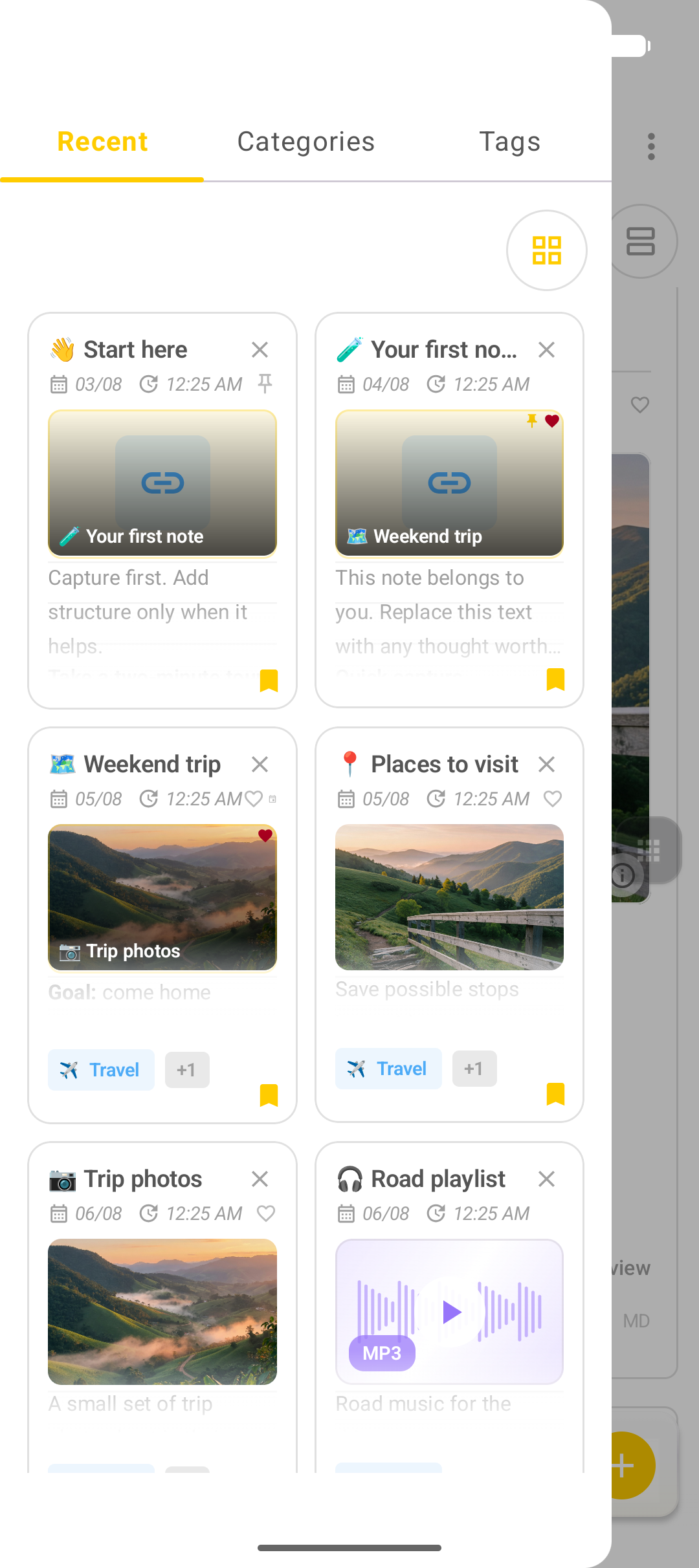
- Weekend trip — text plan
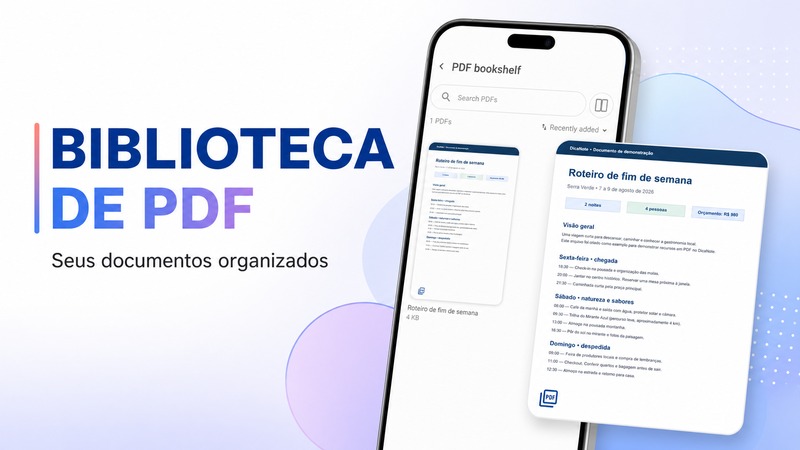
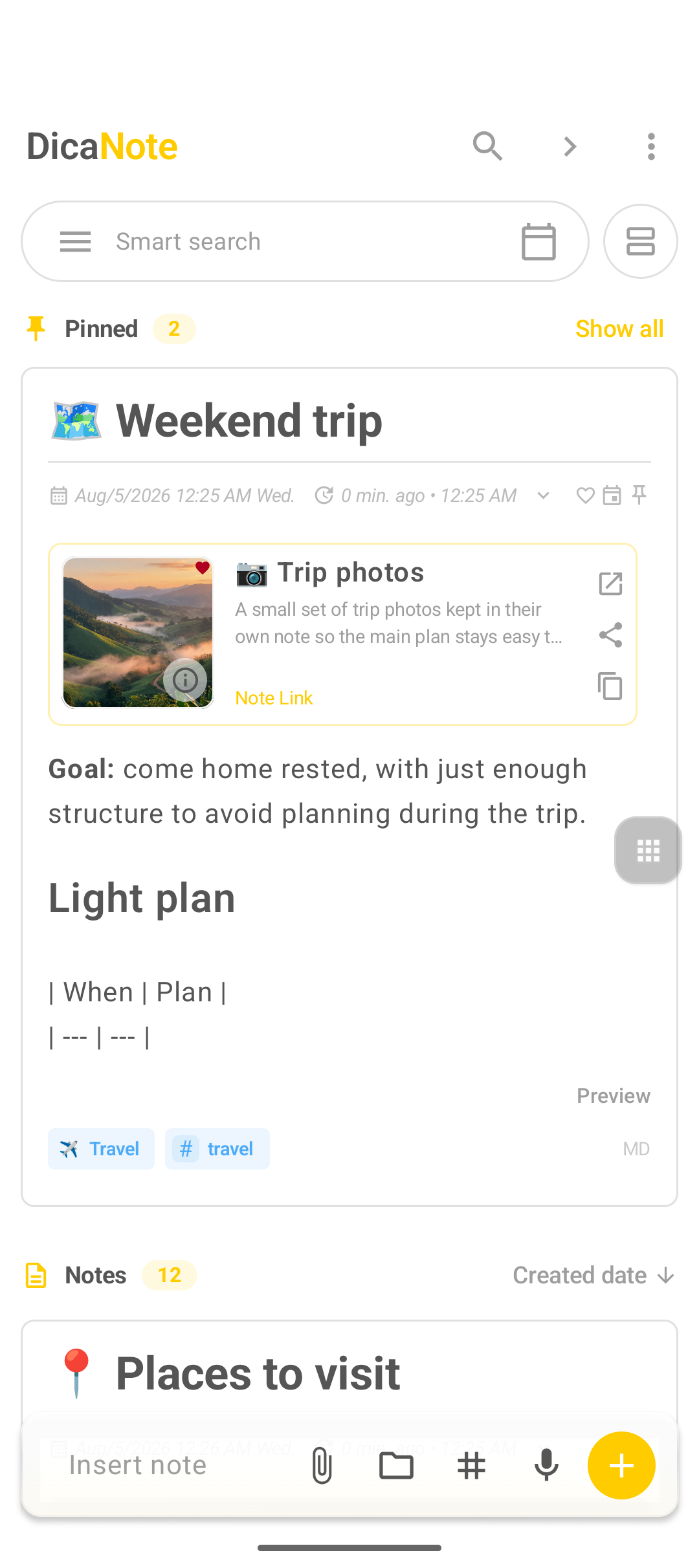
- Linked Trip photos, Road playlist, Lookout clip, Weekend itinerary
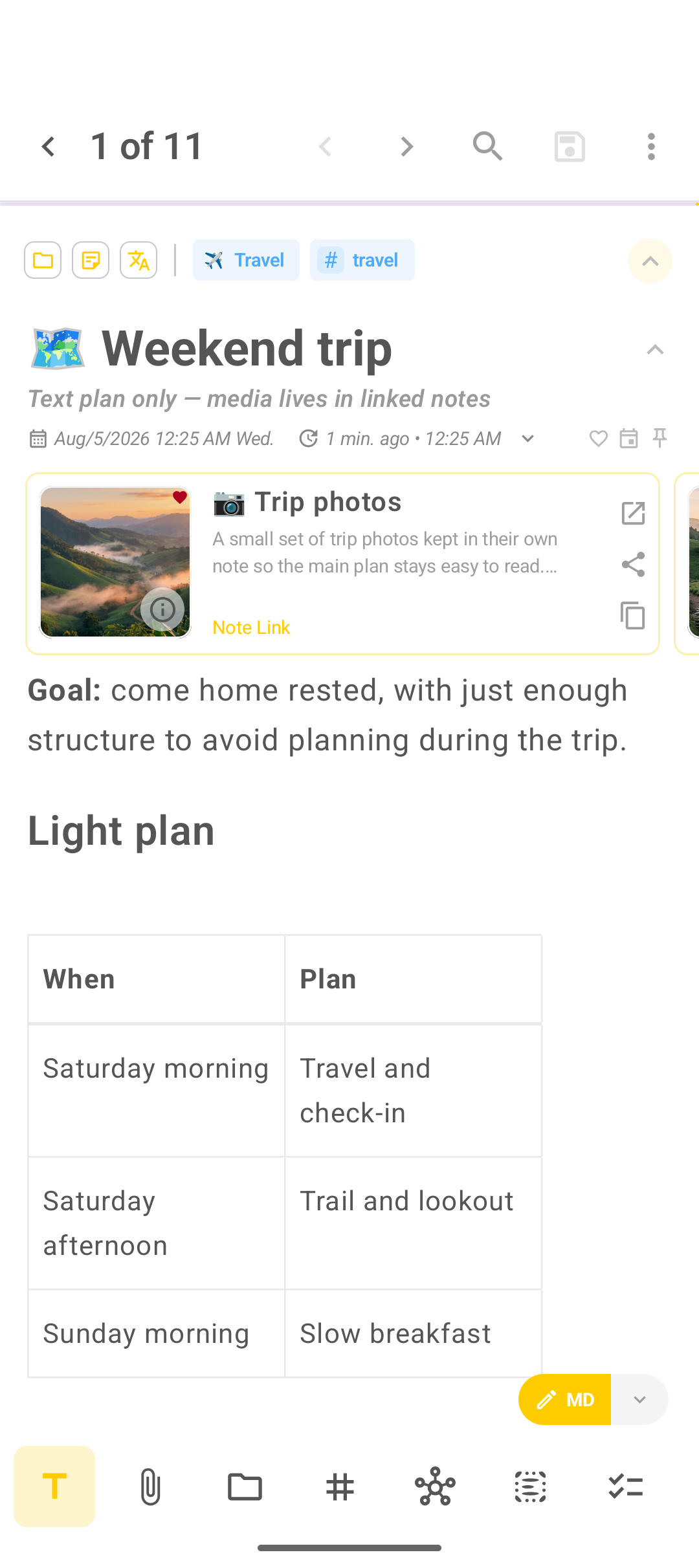
Create a note link
- Open the hub note.
- Use the related notes control (connected nodes) or insert a note link from the editor.
- Choose the target note (for example Trip photos).
- Save.
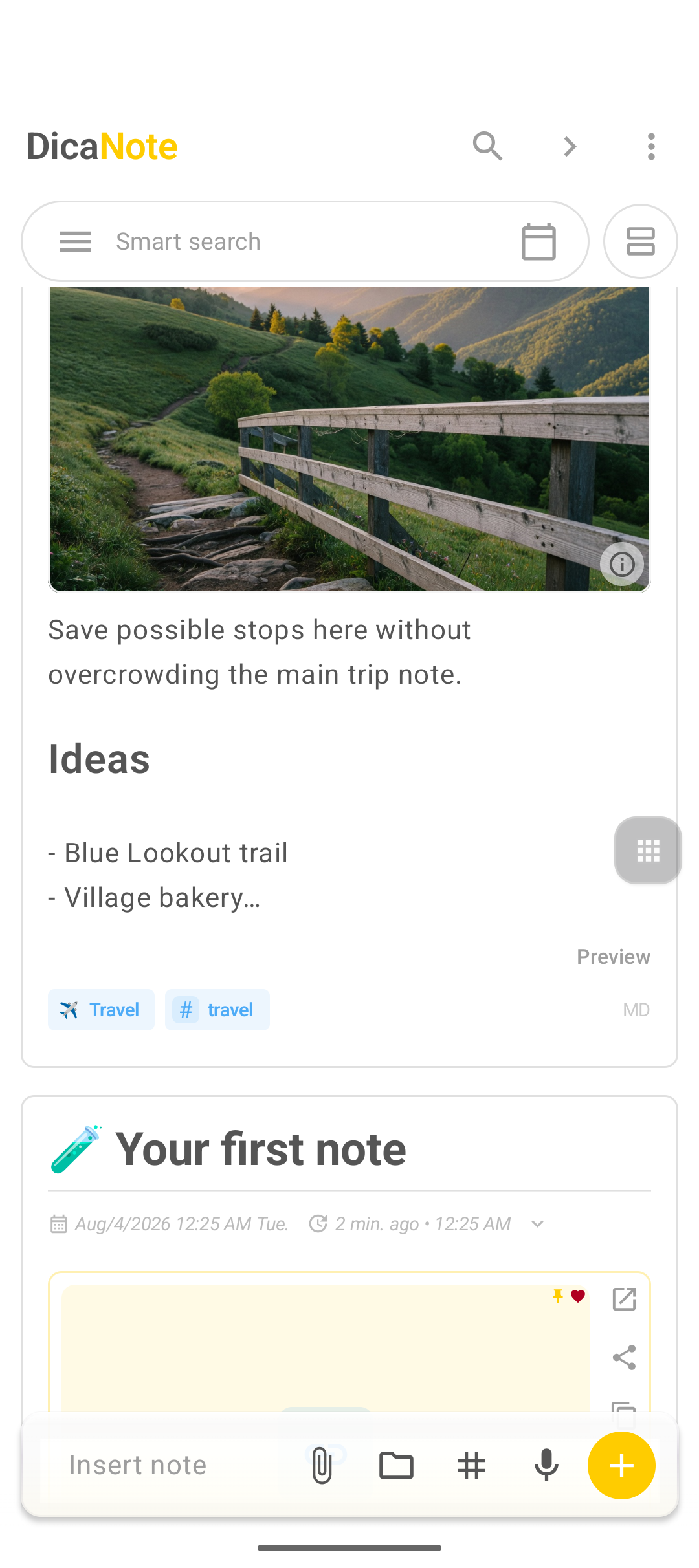
On the home screen, the link can show a thumbnail when the target note has a pinned image.
Hub pattern for a weekend
- Write the itinerary on Weekend trip.
- Put images on Trip photos.
- Put the PDF on Weekend itinerary.
- Put audio and video on their own notes.
- Link all of them back to the trip note.
FAQ
Is a note link the same as a web link?
No. A note link opens another note inside DicaNote. A web link opens a site in the browser (or in-app browser).
Can links go both ways?
You can relate notes from either side. For teaching, link outward from the hub so readers always start from the plan.